Scan once · Avoid retyping

A simple way to load data and control your equipment.

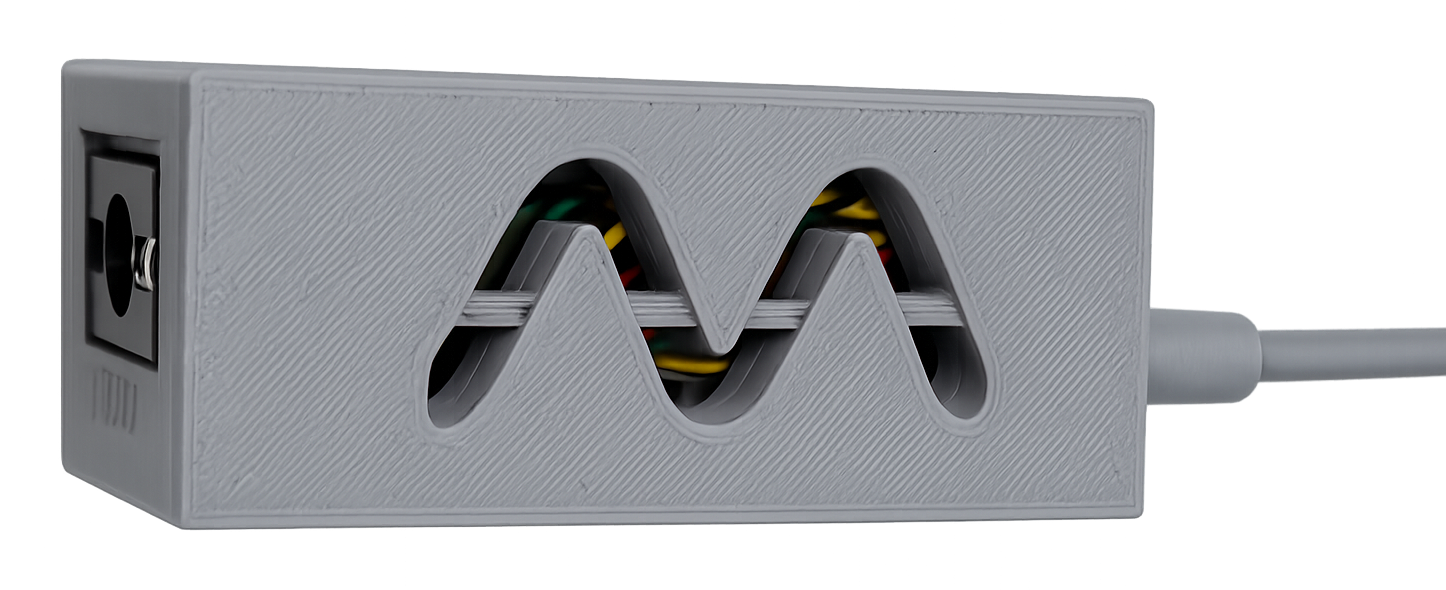
PicoMander receives information from its own or an external scanner, a computer or a phone and sends it to the equipment or software you use, with the format and actions it requires.

It can work without modifying the destination equipment software and, in its simplest use, does not require a complex installation.

Two ways to get started

From the simplest use to complete automation

You do not need to use every feature. Each installation can start with the essentials and expand when needed.

1
Simple use

Configure with a QR code and start scanning

PicoMander is prepared with an existing configuration. It is then connected to the equipment, and the scanned data is entered where it belongs.

2
Advanced use

Control actions and combine multiple sources

With PicoMander Setup you can use buttons, keys, mouse, voice, Windows, Android, spreadsheets, contacts and DICOM Worklist.

  • Send data to one or more destinations.
  • Create buttons, presets, macros and sequences.
  • Adapt the workflow to different equipment and software.
How it works

PicoMander connects what you have with what you need

1

Receives

Data from barcodes or QR codes, documents, clipboard, spreadsheets, Google Contacts, DICOM Worklist, Windows or Android.

2

Interprets

Recognizes useful fields, organizes the information and converts it into the format required by each equipment or application.

3

Sends or controls

Types text, performs keystrokes and clicks, or distributes information via USB, Wi‑Fi, this PC or other configured destinations.

Video demonstrations

PicoMander in real tasks

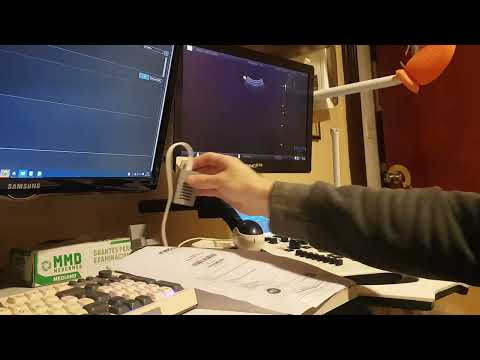
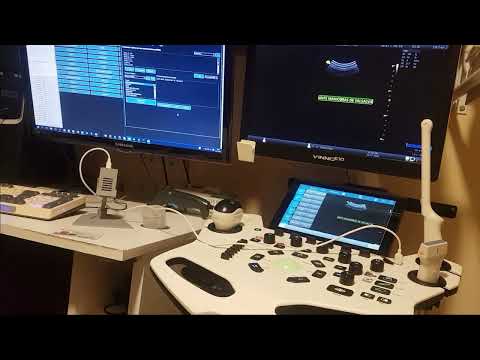
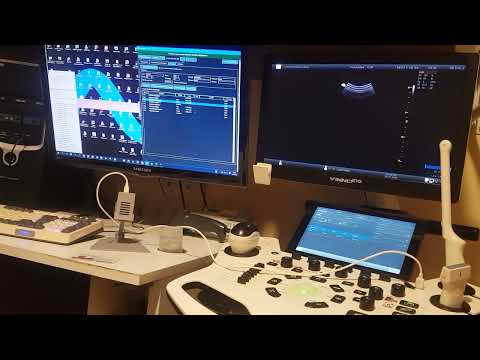
Each example shows a specific feature. Select the thumbnail to open the demonstration on YouTube.

Select or configure equipment using QR

A prepared configuration can be loaded or selected by scanning a QR code, without a complex installation on the destination equipment.

Scan a DNI

PicoMander interprets the DNI code and automatically enters the configured data, avoiding retyping.

Send the same data via USB and Wi‑Fi

A single scan can be distributed simultaneously to more than one destination using different communication methods.

Send preconfigured text

Presets let you save frequently used text and actions and send them with a button, without typing them again.

Run key combinations

PicoMander can send keys or sequences to activate specific functions. In this example, it enables the mouse pointer on the touchscreen of a VINNO E10.

Dictate text and voice commands

Integration with voice tools makes it possible to dictate information and run commands without relying exclusively on the keyboard.

Send data from an Excel spreadsheet

A spreadsheet row can be selected, its columns interpreted, and the information sent through the usual PicoMander workflow.

Send a selected report from Word

PicoMander can take text selected in Microsoft Word through the clipboard and send it to the configured equipment or software without retyping it.

Use a DICOM Modality Worklist

PicoMander can query a DICOM Worklist, select a study and reuse the data in the configured equipment or software.

Synchronize the equipment date and time

PicoMander can take the computer's date and time and send them to the configured equipment. In this example, a CHISON ECO6 ultrasound system is updated.

Control mouse and keyboard from another screen

PicoMander lets you move the pointer, click and send keystrokes to the configured equipment from another device. This function does not transmit the ultrasound system's screen image.

Select and send data from Google Contacts

With read-only authorization, the user can search for a contact and send the selected data to the configured equipment or software.

Flexible and portable

Designed to integrate without interfering with the equipment

PicoMander was designed to work with equipment that is already installed, borrowed, restricted or closed, reducing the need to modify its system.

USB or Wi‑FiChoose the appropriate connection for each destination.
One or more destinationsThe same input can be distributed to different equipment.
Reusable configurationsSave profiles and move them between workstations.
AdaptableFields, formats and actions depend on the configured workflow.
PicoMander Setup

Choose how much you need to configure

Both editions let you use prepared configurations, create or edit presets, and access PicoMander's complementary tools. The Full edition adds the functions needed to create or modify each equipment's own configuration.

Lite

For using prepared configurations

  • Select and send existing configurations.
  • Configure the USB and Wi‑Fi connection.
  • Create, edit and use presets.
  • Create and use work profiles.
  • Use complementary tools and integrations.
  • Perform basic diagnostics.
Available tools and integrations

PicoMander includes complementary tools for creating barcodes and QR codes, send text or data through the clipboard , work with contacts , control the mouse and keyboard from another screen and run presets from different devices.

Some functions integrate with third-party programs, applications or services—such as Microsoft Excel, Microsoft Word, RadiAnt, dcm4che, Dragon NaturallySpeaking, Vocola, Binary Eye or Google Contacts—which may require separate installation, authorization or licensing and are not part of PicoMander.

Google Contacts

You can also send data from your Google contacts

Just as PicoMander can take data from a DICOM Worklist or spreadsheet, it can also search for a Google contact and send its data to the configured equipment or software.

Authorization takes place in the browser and access is read-only. PicoMander does not request the password, modify contacts or store the address book on the developer's servers.

Need help?

Support for installation, configuration and use

For a technical inquiry, include the version, edition, Windows version, destination equipment and the steps that reproduce the issue.

Contact support